

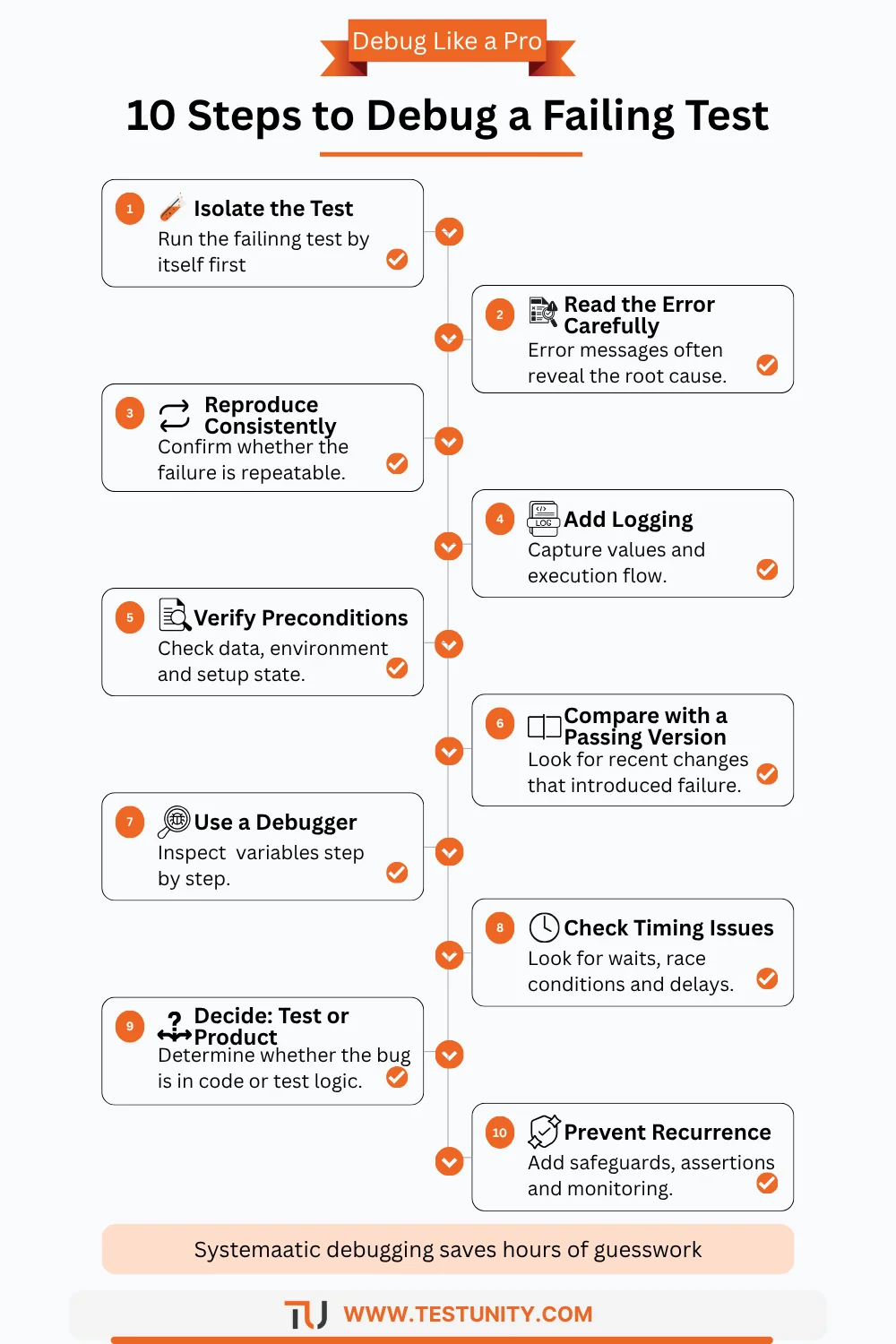
To debug a failing test effectively, you need a systematic method – not guesswork. When a test fails and you have no idea why, it’s easy to waste hours randomly poking at code. This guide gives you a step‑by‑step process to debug a failing test quickly, even when the error message is cryptic or the failure seems impossible.
The Short Answer
To debug a failing test, isolate the failure, read the error message carefully, reproduce locally, add logging, check preconditions and test data, compare with a passing version, use a debugger, and check for timing issues. Follow the evidence – never guess.
Step 1: Isolate the Failing Test
Your first move to debug a failing test is to stop running the whole suite. Run only the failing test.
How to isolate:
| Tool | Command |
|---|---|
| JUnit | mvn test -Dtest=MyTestClass#myTestMethod |
| pytest | pytest tests/test_file.py::test_name -v |
| Cypress | cypress run --spec "cypress/e2e/failing.cy.js" |
| Playwright | npx playwright test failing.spec.ts |

Why isolate? Running hundreds of tests buries the signal. When you debug a failing test alone, you get instant feedback and remove noise from other tests.
Pro tip: If the test passes alone but fails in the suite, you likely have a test order dependency. That’s a separate problem – fix by making tests independent.
Step 2: Read the Error Message Fully
Most developers glance at the first line and start guessing. To properly debug a failing test, read the entire error message – it almost always contains the root cause.
What to look for:
-
File name and line number – Where did the failure originate?
-
Expected vs. actual values – What did the test expect? What did it get?
-
Stack trace – Which method calls led to the failure?
-
Exception type –
NoSuchElementException,AssertionError,TimeoutException– each points to a different problem.
Example:
AssertionError: Expected status code 200, but got 404
    at test_api.py:15: test_get_user
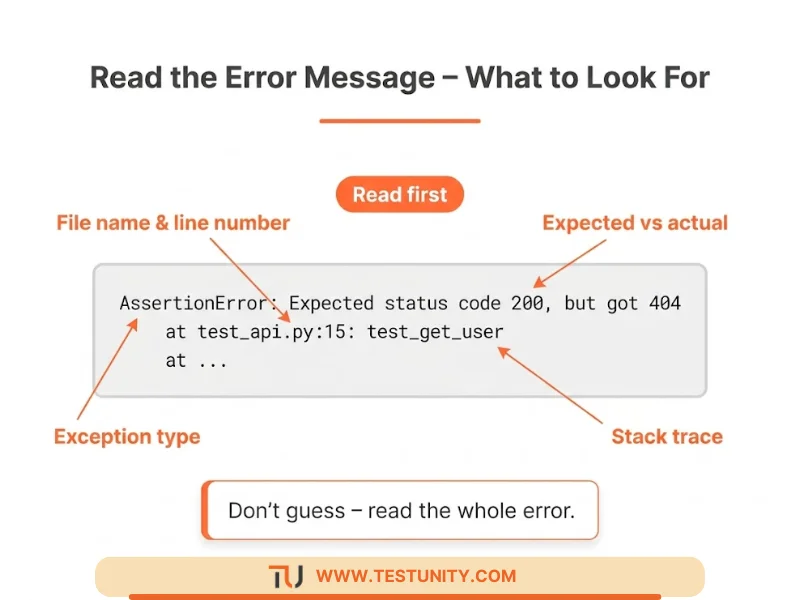
This tells you: the API returned “not found”. Now you know to check if the user exists, the endpoint URL, or authentication.
Action: Copy the error message into a note. Highlight key phrases. Don’t move on until you understand what the error is saying.
Step 3: Reproduce the Failure Consistently
Before you debug a failing test, you need a reliable reproduction. A failure that happens only sometimes is flaky – fix that separately.
To reproduce consistently:
-
Use the same environment variables, database state, and branch as the failing run.
-
If the failure is on CI, download the CI logs and replicate the environment (e.g., Docker image, Node version).
-
Run the test multiple times – if it fails only sometimes, you have a flaky test.

If you cannot reproduce locally: The problem is environmental (timeouts, different data, network latency). Add more logging to the CI run (Step 4) and compare environment settings.
Step 4: Add Strategic Logging
Once you have a consistent reproduction, add logging to understand what the test is doing before it fails. This is a powerful way to debug a failing test without a debugger.
What to log:
-
Input values – What data is being used?
-
State of the system – Is the user logged in? Is the database row present?
-
Return values – What did the API or function actually return?
-
Timing – How long did each step take?
Example (Python):
def test_user_login():
    print(f"Attempting login with user: {TEST_USER}")
    response = login(TEST_USER, TEST_PASSWORD)
    print(f"Response status: {response.status_code}, body: {response.text}")
    assert response.status_code == 200
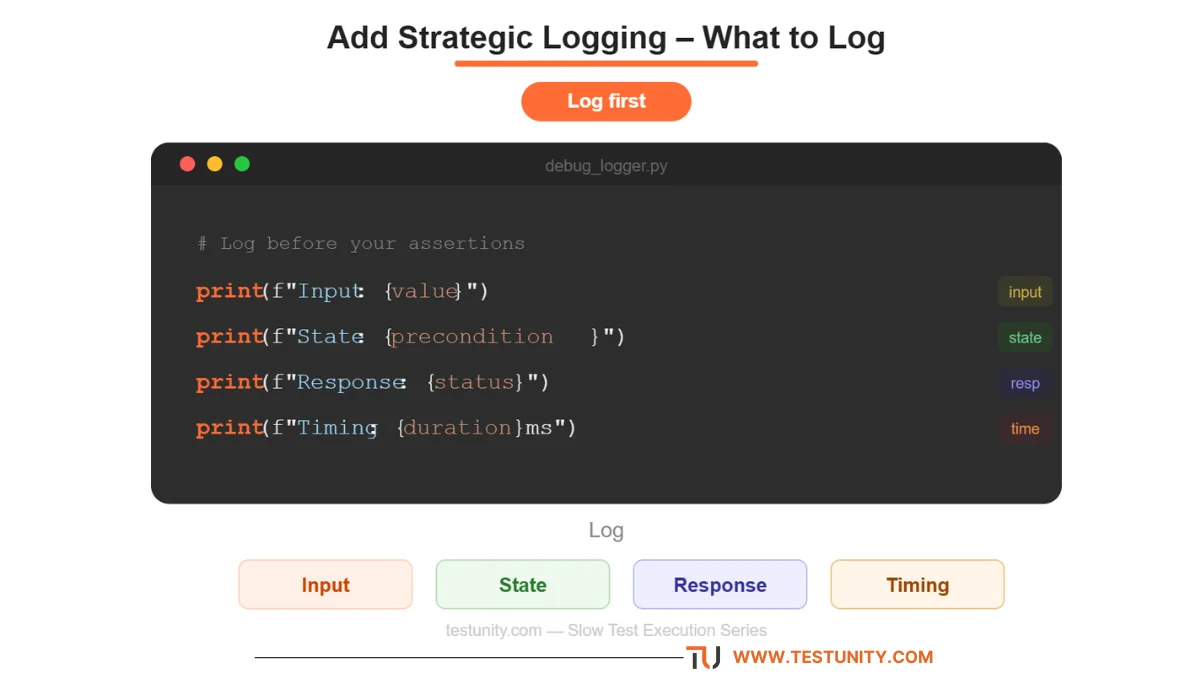
Why this works: The logs will show you exactly where reality diverged from expectation. Often, you’ll see that a precondition was not met (e.g., the user wasn’t created).
Step 5: Check Preconditions and Test Data
A huge percentage of test failures happen because the test assumed something that wasn’t true. When you debug a failing test, always verify the setup first.
| Assumption | What to verify |
|---|---|
| “The user exists in the database.” | Check the test setup – was the user created? With the correct role? |
| “The element is visible.” | Check if a modal or loading spinner is covering it. Check the CSS. |
| “The API token is valid.” | Check if the token expired or the test environment has a different secret. |
| “The test runs after migration X.” | Check the test database schema – was it updated? |

Action: Go to the test’s setup section (@Before, setUp, beforeEach). Verify each precondition step by step. Run the setup alone to see if it succeeds.
Step 6: Compare with a Passing Version (Git Bisect)
If the test worked yesterday and fails today, the change is in your recent code. Use Git to debug a failing test by finding the exact breaking change.
Git bisect method:
git bisect start
git bisect bad   # current version is failing
git bisect good <commit-hash-when-test-passed>
# Git checks out a middle commit. Run the test.
git bisect good  # or bad, depending on result
# Repeat until you find the exact commit that broke the test.
Manual method: Look at the diff between the last known passing commit and the current commit. Focus on changes to the code that the test exercises, test dependencies, and test data.
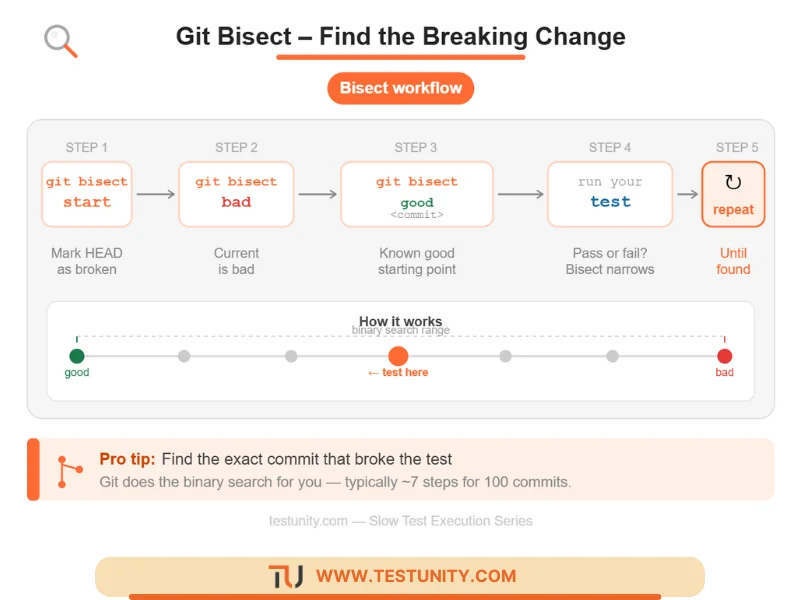
Why this works: Most failures are caused by a recent change. Find the change, and you’ve found the root cause.
Step 7: Use a Debugger (When Logs Aren’t Enough)
Sometimes logs don’t give you enough context. Stepping through the code line by line is the most powerful way to debug a failing test.
How to debug:
| Language/Framework | Command |
|---|---|
| Python (pytest) | pytest --pdb (drops into debugger at failure) |
| Java (JUnit) | Set breakpoints in IDE, run in debug mode |
| JavaScript (Jest) | node --inspect-brk node_modules/.bin/jest --runInBand |
| Cypress | Use cy.pause() or open the Cypress runner |

What to look for while debugging:
-
Variable values – are they what you expect?
-
Control flow – does the code go into the expected branch?
-
Exceptions – where exactly is the exception thrown?
Example: A test fails because user.age is null. Debugging shows that the user object was created without the age field. Fix: populate age in the test setup.
Step 8: Check for Asynchronous Timing Issues
Many tests fail because of race conditions – the test checks for something before it’s ready. When you debug a failing test, always consider timing.
Signs of timing issues:
-
The test passes when you add a
sleep(1)but fails without it. -
The test passes when run alone but fails in a full suite.
-
The error is
Element not foundorTimeout.
Fixes:
-
Use explicit waits (smart waits, not hard sleeps).
-
Poll for the expected condition instead of sleeping.
-
Increase timeout values if the system is genuinely slow.
-
Mock slow dependencies to make tests deterministic.
Step 9: Decide – Fix the Test or Fix the Code?
Once you find the cause, you face a decision: is the test wrong, or is the code wrong?
| If the test expects incorrect behavior | If the code is broken |
|---|---|
| The requirement changed, but the test wasn’t updated. | The test correctly identifies a regression. |
| The test uses bad test data or incorrect assumptions. | A recent code change introduced a bug. |
| The test is too strict (e.g., exact text match where partial is fine). | An external dependency changed behavior. |
Rule: The test is the oracle. If the test is correct, fix the code. If the test is wrong, fix the test. Never change a test to make it pass if the code is truly broken – that’s how bugs escape.
Step 10: Prevent the Same Failure Next Time
After you’ve fixed the failure, make sure it never happens again (or is easier to debug next time).
Prevention actions:
-
Improve assertion messages – Instead of
assertEqual(a, b), useassertEqual(a, b, f"Expected {expected} but got {actual}"). -
Add more pre‑condition checks – Fail early with clear messages if setup fails.
-
Document the failure pattern – Add a comment in the test explaining what caused this bug.
-
Add a regression test – If you fixed code, add a test that covers the edge case.
What If You’re Still Stuck?
You’ve followed all ten steps. You’ve isolated, logged, diffed, debugged. The failure remains a mystery. Some problems are genuinely complex: legacy code, distributed systems, or intermittent infrastructure issues.
That’s when a fresh pair of expert eyes helps. TestUnity’s Test Automation Services include test failure analysis and resolution. We can help you debug a failing test quickly and fix it – so you can get back to shipping.
Need help debugging a failing test? Contact TestUnity today for a rapid debugging session.
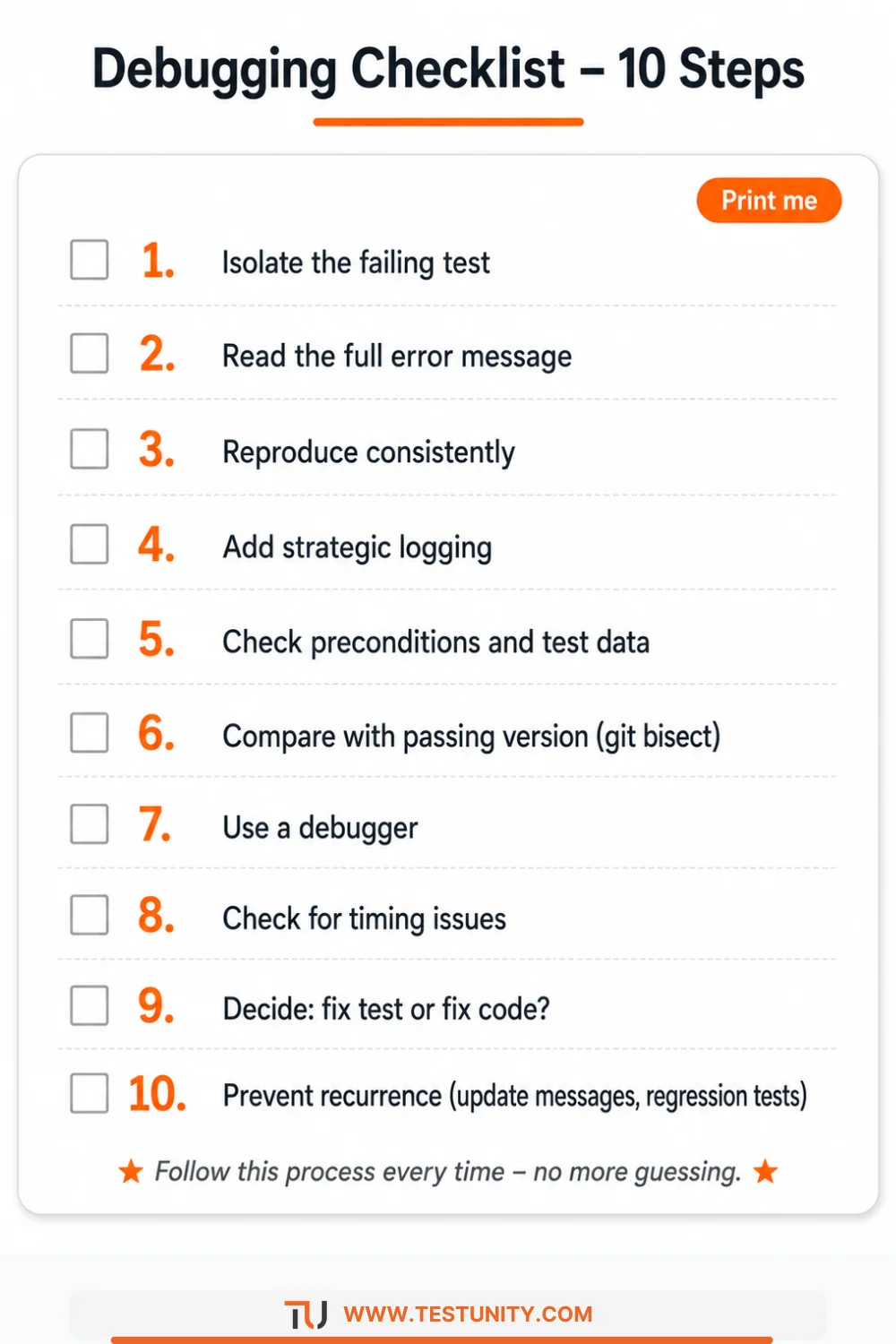
Summary: Your Debugging Checklist
Print this checklist and keep it by your desk:
-
☐ Isolate the failing test (run only that test).
-
☐ Read the full error message – highlight key facts.
-
☐ Reproduce consistently (locally or on CI).
-
☐ Add logging to see pre‑failure state.
-
☐ Verify preconditions and test data.
-
☐ Compare with a passing version (git bisect).
-
☐ Use a debugger to step through.
-
☐ Check for timing issues (waits, async).
-
☐ Decide: fix test or fix code?
-
☐ Prevent recurrence (better messages, regression tests).
Follow this process every time, and you’ll debug a failing test methodically and quickly – no more guessing.
Related Resources
-
How to Write Effective Test Cases: A Beginner’s Guide – Write better tests from the start.
-
Guide to Exploratory Testing – Debugging is a form of exploration.
-
Why Are My Tests So Slow? 7 Quick Fixes – Speed up your feedback loop.

TestUnity is a leading software testing company dedicated to delivering exceptional quality assurance services to businesses worldwide. With a focus on innovation and excellence, we specialize in functional, automation, performance, and cybersecurity testing. Our expertise spans across industries, ensuring your applications are secure, reliable, and user-friendly. At TestUnity, we leverage the latest tools and methodologies, including AI-driven testing and accessibility compliance, to help you achieve seamless software delivery. Partner with us to stay ahead in the dynamic world of technology with tailored QA solutions.



Leave a Reply